
If you have recently purchased a Samsung Smart TV, one of the first things you will probably want to do is install your favorite apps. Whether you want to watch movies, listen to music, play games, follow sports, or access another streaming service, apps can make your television much more useful. The good news is that learning how to add apps to Samsung Smart TV is not difficult. In most cases, you only need an internet connection, a Samsung account, and your TV remote.
Samsung Smart TVs come with an Apps section where you can find and install supported applications. The exact appearance of the menus can be slightly different depending on your TV model, software version, and region, but the basic process remains similar. Samsung’s current support instructions also confirm that users can open Apps from the Home screen, search for an application, select Install, and then open the app after installation.
If you are searching for how to add apps to Samsung Smart TV, you have come to the right place. This guide explains the complete process in simple language. It also covers what you need before installing an app, how to search for an app, how to put a newly installed app on your Home screen, how to move apps, how to update them, and what to do when an app does not appear.
What You Need Before Installing an App

Before learning how to add apps to Samsung Smart TV, it is important to check whether your TV is ready for the installation process.
There are two main things you should check:
- Your Samsung Smart TV should be connected to the internet.
- You should be signed in to a Samsung account.
These requirements are important because Samsung Smart TV apps are downloaded through the TV’s built-in app platform. Samsung states that a stable internet connection can be provided through Wi-Fi or Ethernet, while a Samsung account is required for accessing the app store on supported current models.
1. Connect Your Samsung TV to the Internet
Your TV needs an internet connection to search for and download applications.
You can normally connect your TV using Wi-Fi or an Ethernet cable.
If you are using Wi-Fi, your television connects to your home wireless network. This is convenient because you do not need to run a network cable to the television.
If your TV is close to your router, you can also use an Ethernet cable. A wired connection can be useful if your Wi-Fi signal is weak or unstable.
To check your connection, open the TV’s Settings menu and look for the Network or Connection options. The exact menu names can differ depending on your model.
If the TV is already connected to the internet, you can move on to the next step.
2. Sign In to Your Samsung Account
The second important requirement is a Samsung account.
On many recent Samsung Smart TVs, Smart Hub services and apps require you to sign in to a Samsung account. Samsung specifically notes that starting with 2023 Smart TVs and Smart Monitors, a Samsung account is required to access Smart Hub features such as apps.
If you already have a Samsung account, simply sign in when prompted.
If you do not have one, you can create an account during setup or follow the account creation process provided by Samsung.
You should also make sure that you have accepted the necessary terms and conditions. If the Smart Hub setup has not been completed, some apps or app lists may not appear correctly.
Did you Know How to Control Roku Box with Smart Samsung TV Remote Control
How to Add Apps to Samsung Smart TV

Now let’s get to the main question: how to add apps to Samsung Smart TV.
The process is straightforward.
Step 1: Turn On Your Samsung Smart TV
Turn on your television and wait for the Home screen to appear.
Take your Samsung Smart Remote and press the Home button.
The Home button normally takes you to the main Smart TV screen, where you can access apps, settings, connected devices, and other features.
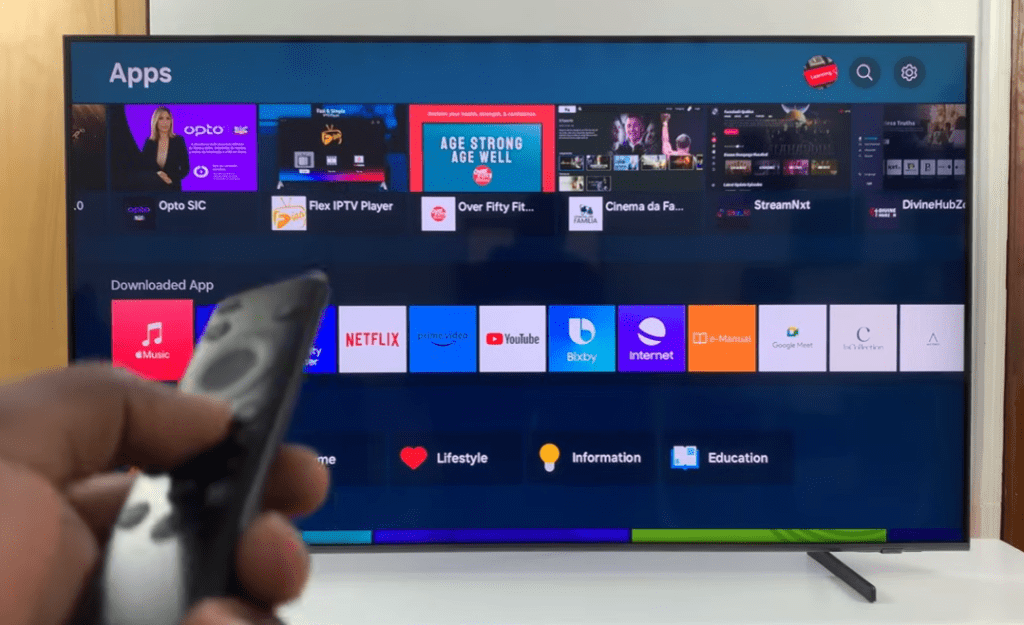
Step 2: Open the Apps Section
Once you are on the Home screen, look for Apps.
Select Apps using the remote.
This opens the Samsung TV’s application area. Depending on your model and software version, you may see recommended applications, popular apps, categories, installed apps, and a search option.
This is the main place you will use when learning how to add apps to Samsung Smart TV.
You do not normally need to visit a separate website or connect a computer to install a standard supported TV app. The TV’s own Apps section handles the process.
Step 3: Browse the Available Apps
After opening Apps, you can browse the applications available for your television.
You may see sections such as:
- Recommended apps
- Popular apps
- Downloaded apps
- Entertainment
- Lifestyle
- Games
- Music
- Sports
- Video and streaming
- Other categories
Browsing can be useful when you are not looking for a particular application.
For example, if you want to discover a new music application, you can browse the music category. If you are interested in games, you can check the games section.
However, browsing is not always the fastest option.
If you already know the name of the app you want, searching is usually easier.
How to Search for a Specific App

One of the easiest ways to understand how to add apps to Samsung Smart TV is to use the built-in search function.
Step 1: Select the Search Icon
Inside the Apps section, look for the Search icon.
On many Samsung TV interfaces, it is located toward the upper area of the Apps screen. Samsung’s current instructions also describe using the Search icon to find an app by name.
Select Search.
Step 2: Enter the App Name
An on-screen keyboard will appear.
Use your remote to enter the name of the app you want.
For example, suppose you want to install Apple Music.
You can type:
Apple Music
As you type, the TV may display suggested search results.
If the application appears, select it.
If it does not appear immediately, continue typing the full name and perform the search.
Step 3: Check the Search Results
Once the search is complete, look through the results.
Make sure you select the correct application.
This is especially useful when several apps have similar names.
Select the app to open its information page.
The information page may show details about the application, screenshots, ratings, related applications, and installation options.
Step 4: Select Install

After opening the application page, look for the Install button.
Select Install.
Your Samsung Smart TV will begin downloading the application.
The time required depends on the size of the app and the speed of your internet connection.
A small application may install quickly, while a larger application can take longer.
It is best not to turn off the television or disconnect the internet while the application is being downloaded.
Samsung’s current support instructions describe the same basic process: search for the app, select it, choose Install, and wait for the installation to finish.
Step 5: Open the App

Once installation has finished, you should see an option such as Open.
Select Open if you want to launch the app immediately.
For example, if you installed Apple Music, selecting Open will launch Apple Music.
At this point, the application has been installed on your TV.
However, there is another useful step you may want to take.
You may want to add the application to your Home screen so you can access it more quickly in the future.
How to Add an Installed App to the Samsung TV Home Screen

Installing an app and placing it on the Home screen are not always exactly the same thing.
This is an important point when learning how to add apps to Samsung Smart TV.
An application can be successfully installed but may not automatically appear in the position you want on the Home screen.
Samsung provides options for adding, removing, and rearranging apps on supported TV interfaces.
There are slightly different Home-screen layouts depending on the TV model and software version.
Method 1: Use the Add to Home Option
On some Samsung TVs, after the installation is complete, you may see options such as:
- Open
- Add to Home
If you see Add to Home, select it.
The app will then be placed on the Home screen.
This is one of the easiest ways to organize a newly installed application.
Method 2: Add the App Later
If you did not add the app immediately after installation, you can usually manage it from the Apps section.
Open:
Home → Apps
Then find your installed application.
Depending on your TV interface, you may need to open App Settings or use a list-editing option.
Samsung’s current instructions describe using the Apps area to manage installed applications and add an app to the Home screen.
How to Move an App on the Home Screen

Once you know how to add apps to Samsung Smart TV, you may also want to arrange them in a convenient order.
For example, you might want your most-used streaming apps at the beginning of your app row.
On supported Samsung TV interfaces, you can use the Home-screen editing controls to move apps.
One current Samsung method is to go to the Home screen, open the editing option such as List Edit, select the app, and use the directional buttons to move it. Samsung also notes that some models allow users to long-press the Select button to move an app.
The exact controls can vary.
The basic idea is simple:
- Open the Home screen.
- Find the app.
- Select the editing or move option.
- Choose the new position.
- Press Select to confirm.
This makes your TV easier to use because your favorite apps are always within easy reach.
How to Add Apps to Samsung Smart TV When the App Is Not Visible
Sometimes you open the Apps section and cannot immediately find the application you want.

Do not assume that the app cannot be installed.
First, use the Search function.
Search for the exact name of the app.
If the app still does not appear, there may be several reasons.
The App May Not Be Available in Your Region
Samsung Smart TV apps are not necessarily available in every country or region.
An application may be available in one country but unavailable in another.
This is controlled by the app provider, Samsung’s platform availability, licensing arrangements, and regional requirements.
Therefore, if you are trying to install an application and it does not appear in the search results, regional availability may be one possible explanation.
Your TV May Not Support the App
Not every application works on every Samsung Smart TV.
Older TVs may have different software or hardware requirements.
An app developer may also stop supporting older models.
Samsung notes that app availability and menu behavior can vary by model, software version, and region.
The TV Software May Need an Update
Another possibility is outdated TV software.
Check whether your Samsung Smart TV has a software update available.
Samsung recommends checking for software updates when apps are not working correctly because updates may contain fixes or compatibility improvements.
What to Do If an App Will Not Install

Knowing how to add apps to Samsung Smart TV is useful, but knowing how to fix installation problems is just as important.
If an app refuses to install, work through the following checks.
Check Your Internet Connection
Start with the simplest possibility.
Make sure the TV is connected to the internet.
Try opening another online service on the TV.
If other online features are also failing, the problem may be your network rather than the app.
If you use Wi-Fi, check whether the television has a strong signal.
If possible, restart your router and try again.
Restart the TV
A simple restart can sometimes resolve temporary software problems.
Turn the TV off and back on.
After restarting, open Apps again and try to install the application.
Check Available Storage
Your TV needs enough storage space for an application.
If the TV has very little free space, an installation or update may fail.
Samsung notes that insufficient storage can prevent app updates and recommends deleting unused apps to free space.
You can review your installed applications and remove ones you no longer use.
How to Delete Apps You No Longer Need

Once you learn how to add apps to Samsung Smart TV, you may eventually install more applications than you actually use.
Removing unused apps can make your app list easier to manage and may free storage.
To remove an app, the general process is:
- Open the Home screen.
- Select Apps.
- Open the app-management or App Settings area.
- Select the app you want to remove.
- Choose Delete.
- Confirm the deletion.
Samsung notes that deleting an app also removes data associated with that app, and some pre-installed apps cannot be deleted.
So before deleting an application, make sure you are comfortable removing its local data.
How to Update Apps on a Samsung Smart TV
Installing an app is only the beginning.
Applications are regularly updated to fix bugs, improve performance, add features, and maintain compatibility with online services.
Samsung provides both manual and automatic app-update options on supported TVs.
Turn On Automatic Updates
If your TV supports the option, go to the Apps settings and look for Auto Update.
Turn it on.
This allows supported apps to update without requiring you to manually check every application.
Update Apps Manually
You can also check individual applications for available updates.
A typical current Samsung route is:
Home → Apps → App Settings
From there, select the application and choose Update when an update is available.
You may also see an Update All option on supported models.
Why a Samsung Account Is Important

If you are researching how to add apps to Samsung Smart TV, you may wonder why Samsung asks you to sign in.
The Samsung account connects your TV to Samsung’s Smart Hub services.
On recent Samsung Smart TVs, the account is required for accessing Smart Hub apps and related features. Samsung explains that without completing the account and terms setup, Smart Hub apps such as streaming services may not be available.
This means that if you are stuck because the Apps section is unavailable or incomplete, check your Samsung account status.
Also check whether you have accepted the required terms and conditions.
Can You Install Any App You Want?

No.
This is an important distinction.
Learning how to add apps to Samsung Smart TV does not mean that every mobile, computer, or Android application can be installed on a Samsung television.
Samsung Smart TVs use their supported TV software platform and app ecosystem.
You should therefore search the TV’s Apps section for the application you want.
If an app is not offered there, you should not assume that downloading a random file from the internet will make it compatible.
An app designed for Android phones, Windows computers, or another operating system may not work on a Samsung Smart TV.
Can You Install Apps Using a USB Drive?

This depends on the TV model and application.
Samsung documentation notes that on some TVs, certain apps may be installed on a USB device when internal storage is insufficient. However, apps installed on a USB device are tied to the TV environment and cannot simply be transferred to another TV or computer for use.
For most users, the normal Apps interface is the preferred approach.
If your TV specifically supports USB-based app storage, follow the instructions for your exact model rather than using a generic procedure.
Why Is the App Installed but Missing From Home?
This is a common situation.
You install an application successfully, but then you return to the Home screen and cannot find it.
First, do not reinstall it immediately.
Open the Apps section and look through the downloaded or installed apps.
The application may already be there.
Samsung’s support guidance explains that installed apps can be accessed from Apps even when they are not displayed in the preferred Home-screen position. Users can also add apps to the Home screen through the available management controls.
So remember:
Installed does not always mean prominently displayed.
If the app is installed, you can usually add it to your preferred Home-screen location.
What If the Apps List Is Missing?

There is another situation that can confuse users.
You may see an Apps tile but not the full list of applications.
According to Samsung, if the Smart TV setup has not been completed correctly, including acceptance of required terms and conditions, the Apps list may not appear normally. Samsung recommends completing the Smart Hub setup and agreeing to the required terms.
Therefore, if the Apps area looks incomplete, check:
- Internet connection
- Samsung account
- Smart Hub setup
- Terms and conditions
- TV software updates
How to Make Your Samsung Smart TV Easier to Use
After learning how to add apps to Samsung Smart TV, spend a few minutes organizing your Home screen.
Keep your most frequently used apps near the beginning.
For example, you might place:
- Your main streaming app
- YouTube
- Music
- Sports
- A children’s app
- Your preferred media player
This saves time because you will not need to search through the entire Apps section every time you want to watch something.
Samsung provides options to move, remove, and organize apps on supported Home-screen interfaces.
Tips for a Better Samsung Smart TV App Experience
1. Keep Your TV Updated
Software updates can improve compatibility and fix problems.
If an application suddenly stops working, check the TV software before assuming the app itself is broken.
2. Keep Your Apps Updated
An outdated app can experience performance or compatibility problems.
Turn on automatic updates if the option is available.
3. Remove Apps You Do Not Use
Unused apps can clutter your Apps screen.
Delete applications you no longer need, especially if storage space is limited.
4. Use the Built-In Search
If you know exactly which app you want, searching is faster than browsing through categories.
5. Check Regional Availability
If an app does not appear in search, it may not be supported in your country or on your particular TV.
6. Use a Reliable Internet Connection
Apps need internet access for installation and, in many cases, for their normal operation.
7. Check the App Developer’s Requirements
Some applications may require specific TV models, software versions, or services.
Final Thoughts
Learning how to add apps to Samsung Smart TV is much easier once you understand the basic process.
First, make sure the TV is connected to the internet. Then make sure your Samsung account is signed in and Smart Hub setup is complete. Press Home, open Apps, search for the application you want, select it, and choose Install.
After installation, you can open the app immediately or add it to your Home screen for faster access. You can also organize your applications, move them, update them, or remove the ones you no longer use.
The most important thing to remember is that the menus can look slightly different from one Samsung TV to another. Samsung itself notes that menu names, screenshots, and available features can vary according to model, software version, and region.
So if your TV does not look exactly like another Samsung TV shown in a tutorial, do not worry. Look for the same basic options: Home, Apps, Search, Install, Open, Add to Home, and App Settings.
Once you understand these options, how to add apps to Samsung Smart TV becomes a simple process that you can repeat whenever you want to install a new supported application.
How do I add apps to Samsung Smart TV?
To add an app, press the Home button, open Apps, search for the application, select it, and choose Install. Once installation is complete, select Open or use the available option to add it to the Home screen. Samsung’s current instructions follow this general process.
Why can’t I find the Apps button?
The layout can vary by model and software version. Look for Apps from the Home screen or use the available Search option. If Smart Hub is not fully configured, some app functionality may also be unavailable.
Do I need Wi-Fi to install apps?
No. You can generally use either Wi-Fi or a wired Ethernet connection. What matters is that the TV has a working internet connection.
Do I need a Samsung account?
On recent Samsung Smart TVs, yes, a Samsung account is required to access Smart Hub apps. Samsung specifically documents this requirement for recent models.
Why is my app not appearing after installation?
Check the Apps section first. The app may be installed but not added to your preferred Home-screen location. Use the available Add to Home or Home-screen editing option.
Can I move apps?
Yes, supported Samsung TVs allow you to rearrange apps. The exact process varies by software version, but Samsung provides options such as List Edit and Move.
Can I delete installed apps?
Yes, many apps can be deleted through App Settings. However, certain pre-installed applications may not be removable.
Why won’t an app install?
Check your internet connection, storage space, Samsung account, TV software, and app availability. If the app is unavailable for your TV model or region, installation may not be possible.
Can I install Android apps on a Samsung Smart TV?
You should not assume that a mobile Android application can be installed directly on a Samsung Smart TV. Use the TV’s supported Apps ecosystem and search for a compatible TV version.