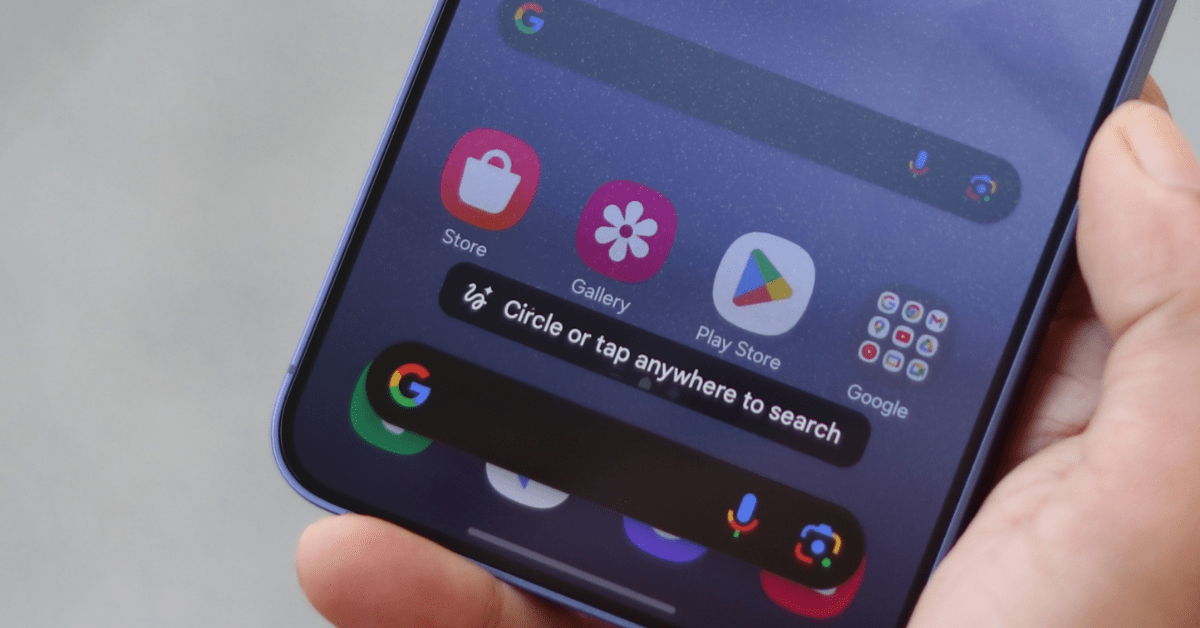
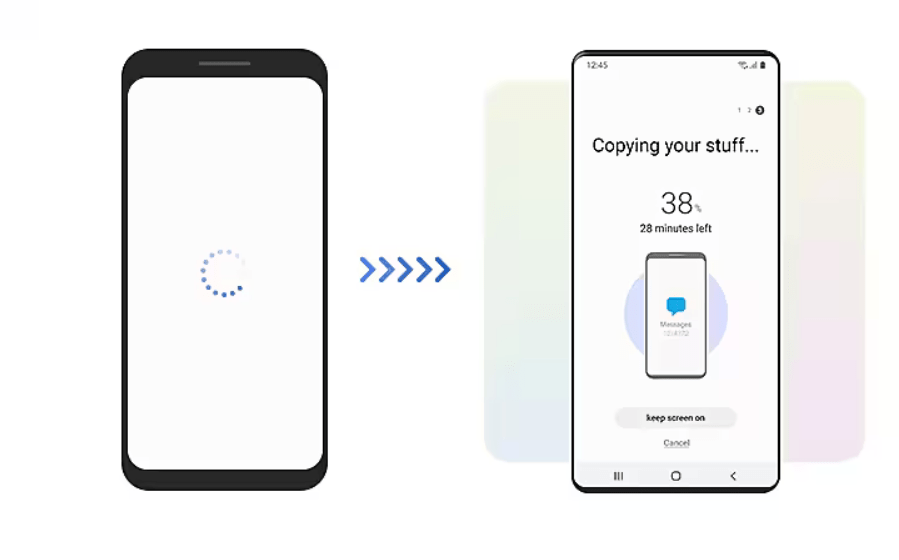
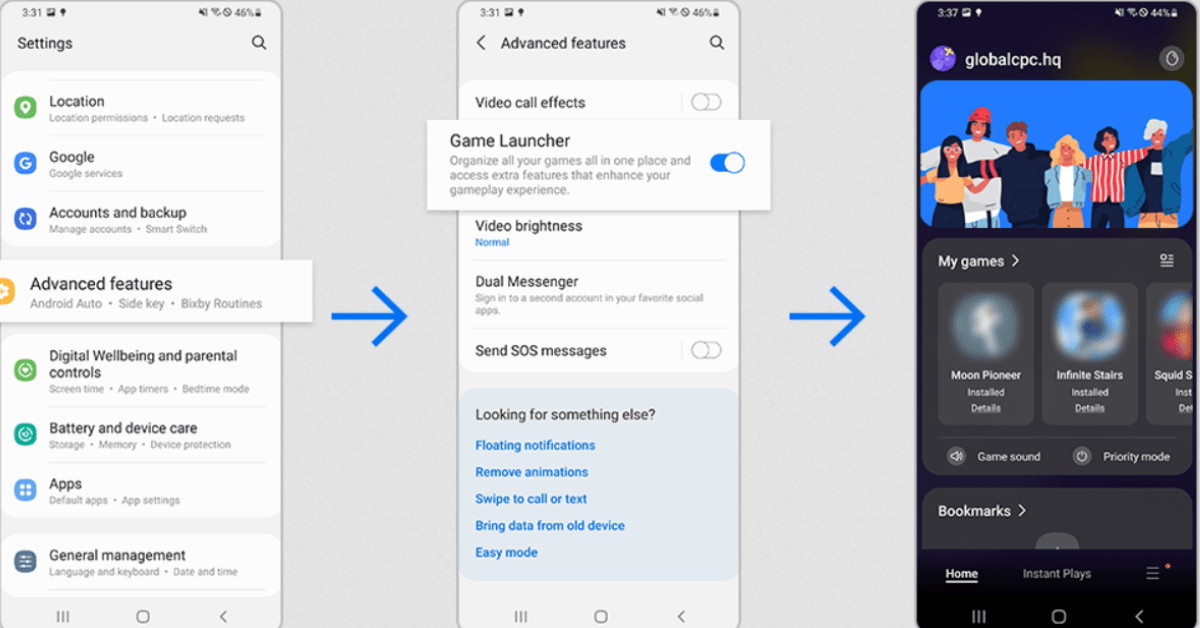
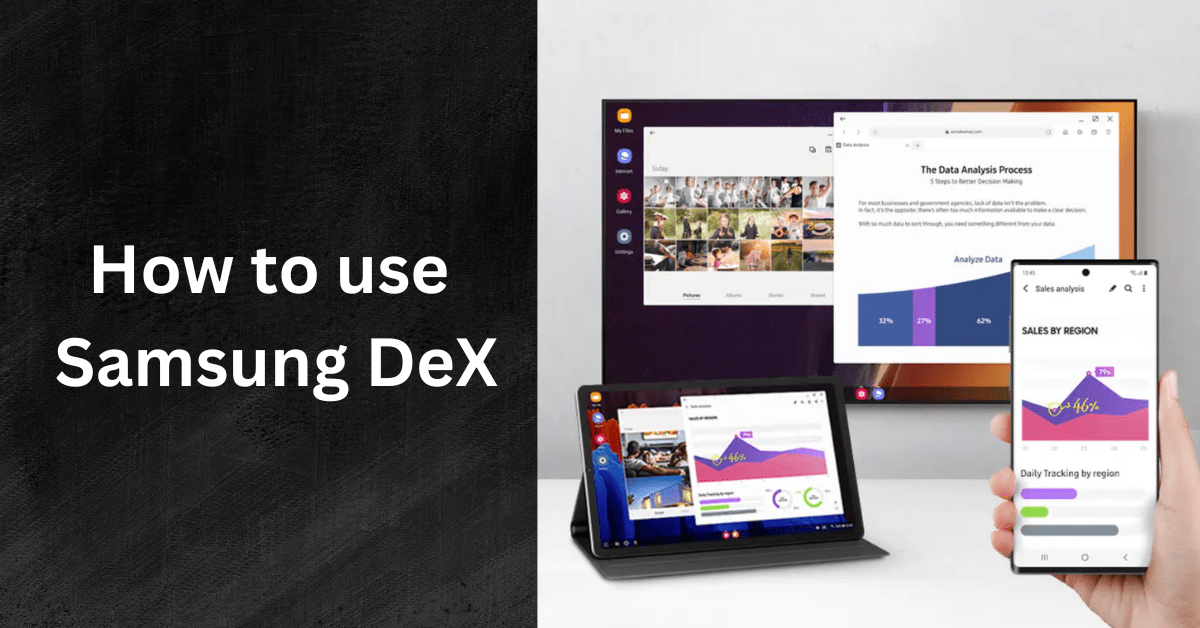
Explore all the new products from UNPACKED Galaxy S24 Ultra Circle to Search Circle it, find it. Just like that Learn More Titanium Armor up with titanium Learn More Camera Powerful NPU. Pro-grade camera. Now with AI Learn More Gaming Our most hyper-realistic mobile gameplay yet Learn More Galaxy Z Flip5 The largest cover screen on a Galaxy Z Flip yet Pocketability One size fits all pockets Learn More FlexCam The best selfie experience on a Galaxy smartphone Learn More Flex Window The largest cover screen on a Galaxy Z Flip Learn More Pocketability Flex Mode with more controls at your fingertips Learn More Galaxy Z Fold5 The largest cover screen on a Galaxy Z Flip yet Design One size fits all pockets Learn More FlexCam The best selfie experience on a Galaxy smartphone Learn More Flex Window The largest cover screen on a Galaxy Z Flip Learn More Pocketability Flex Mode with more controls at your fingertips Learn More Exynos Galaxy S23 FE Receives April 2024 Security Update April 25, 2024 No Comments Read More » How to Disable Circle to Search in One UI 6.1 April 25, 2024 No Comments Read More » Galaxy Tab S8 Full Specs April 24, 2024 No Comments Read More » Is it Worth it to Buy Galaxy Note10 April 23, 2024 No Comments Read More » Samsung Confirms Galaxy Z Fold 6 Battery April 23, 2024 No Comments Read More » Samsung Galaxy S25 Ultra-Specs,Features & Changes April 22, 2024 No Comments Read More » Samsung Galaxy A35: Full Specs and Features April 18, 2024 No Comments Read More » Transferring data between Samsung phones in just few steps April 18, 2024 No Comments Read More » how to enable game booster in Samsung April 17, 2024 No Comments Read More » How to Use Samsung Pay | You can set up in just a few steps April 16, 2024 No Comments Read More » How to Use Samsung DeX for Your Devices April 15, 2024 No Comments Read More » How to Enable Knox on Samsung, Here is the Step by Step Process. April 15, 2024 No Comments Read More » Load More
How to Enable Knox on Samsung, Here is the Step by Step Process. April 15, 2024 No Comments Read More »